Setup Teacher Category & Admin Account
after you successfully deploy your Firebase Cloud Functions to Firebase, in the previous tutorial, and try to run your client app, you will see that the Teacher category is still empty, well because we still haven't imported the Teacher category into our Firestore Database,
we will also setup admin email & password that you will use when you want to log in on the Hallo Teacher Web Admin Dashboard
- To setup Teacher category & admin credentials, open
Command Promptin folder/Halo_Teacher_Cloud_Function_Firebase/functions - inside
/functionsfolder run
npm run setup-firebase
- You'll get prompted to enter the path to you service account key file, To generate it, go to your
Firebase Dashboard,Project settingstab and then toService accountsoption
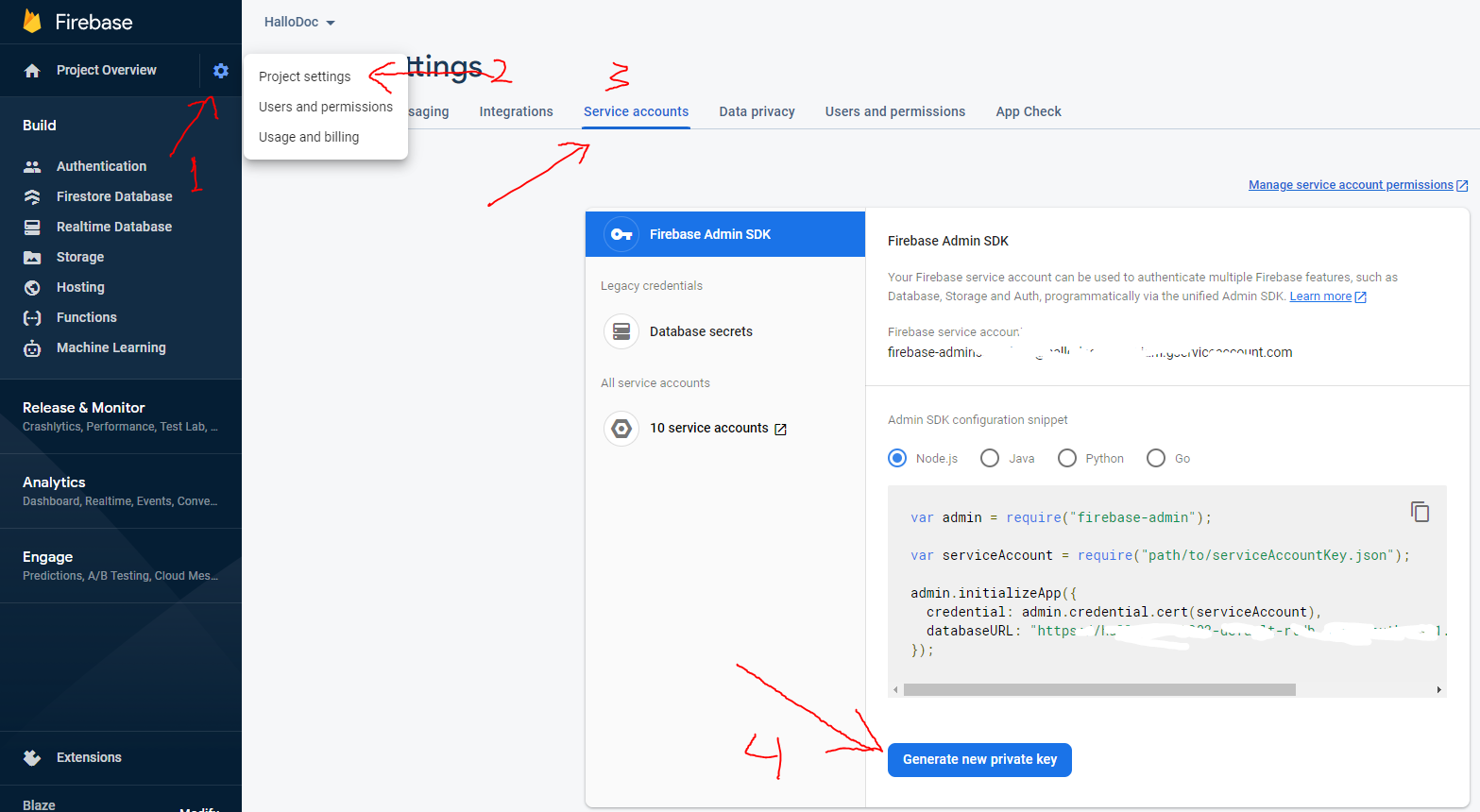
- after downloading it you can directly enter the path in the command line earlier, or more easily put your service account file in the
/functionsfolder, and you just have to type the service account file name in command line

- after that you have to enter your database url, you can get it on the same page when you download your service account
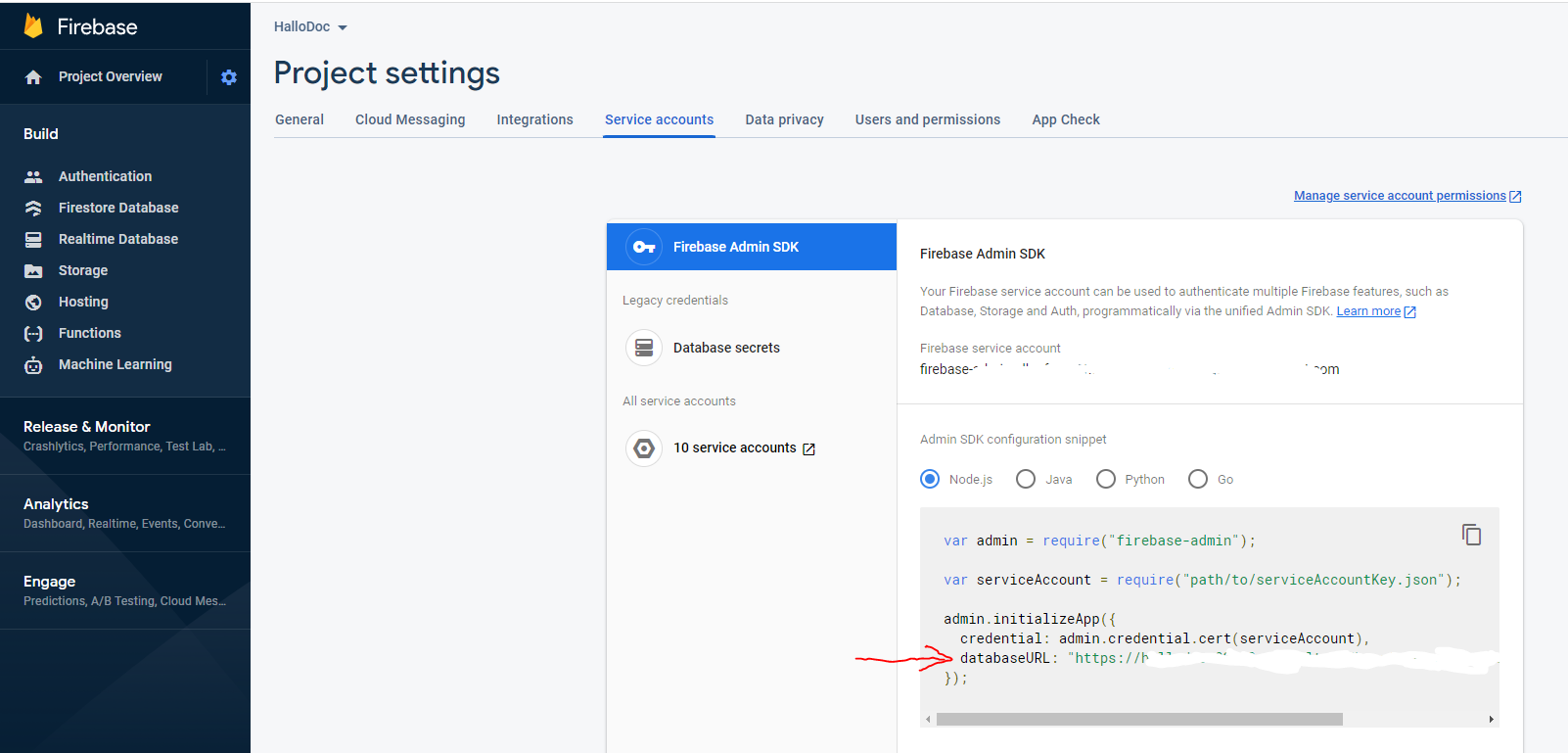

- Next you have to enter your
email addressandpasswordthat will be used to login to your web admin dashboard
caution
make sure the password is six characters or more, and make sure you remember the email & password
if everything goes well, the Teacher category should have been added and the admin credentials to login to the web admin should have been setup
Next we will setup the Web admin dashboard