Setup Teacher App
after we have set up the client app, now is the time to set up the Teacher app, actually almost the same way and most of it we have done earlier, so here it should be quick, we only have setup firebase for Teacher App
1. Open Hallo Teacher - Teacher App in Visual Studio Code
- Open Visual Studio Code -> Click File -> Open Folder -> chose
Hallo_Teacher_Teacher_App_Firebasefolder
or
- Open CMD if you use windows
- Go to
Hallo_Teacher_Teacher_App_Firebasedirectory, you can your command cd - and type
code .
visual studio code will be opening in that directory
Step No.2 Install Project Dependencies
after the Helo Teacher : Teacher App project opens in Visual Studio code or in Android Studio, we will install all the dependencies
when you open Hello Teacher : Teacher App for the first time in Visual Studio Code, Usually a dialog will appear in the bottom right corner, asking you to directly install all dependencies, just click Get packages
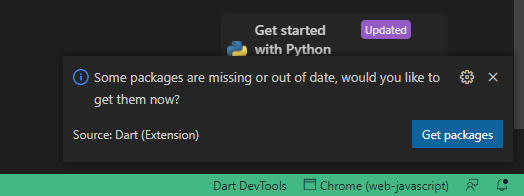
but if the dialog doesn't appear, or an error occurs while installing dependencies, you can directly install all dependencies in the following way
- open terminal in Visual Studio Code
CTRL + `orClick Terminal -> New Terimal - type
flutter pub get - once that's done, all dependencies should be installed
Step No 3. Create .env
- create .env file in the root directory
- copy content from .env_example to your new .env file
- and add agora app id to line
AGORA_APP_ID=your agora app id put here
Step No 4. Setup Firebase on Teacher App
we have to add Teacher App in the firebase project we created earlier, and add google-services.json into this Teacher app, so that clients and Teachers can connect to the same server
the process is almost the same when we add the Client App
Open your firebase project -> add new android app
Click android icon
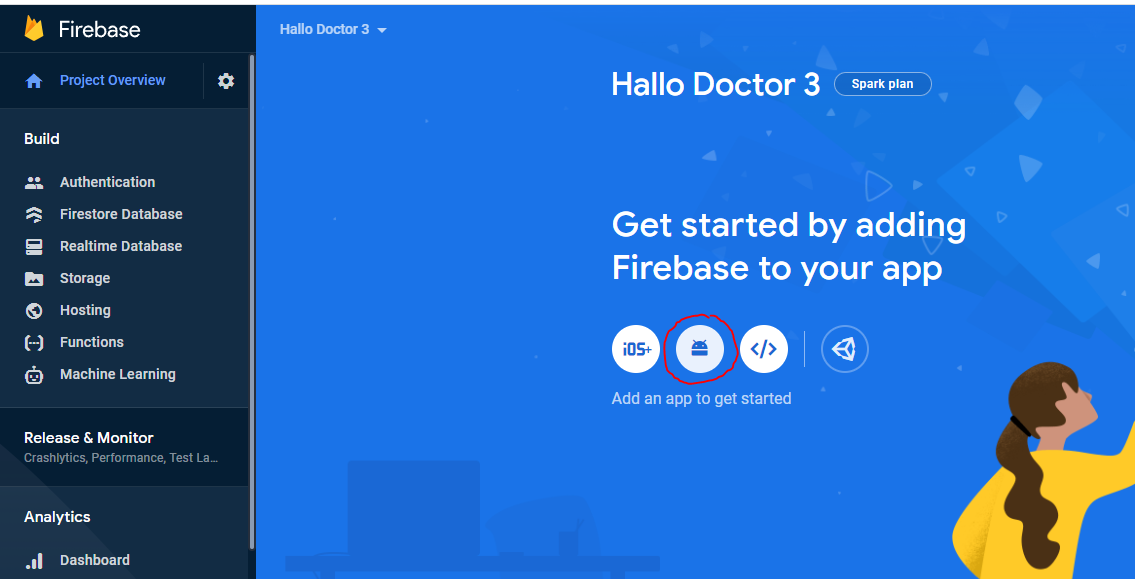
After that we are required to fill in three information about our app,
Package Name,App Name, andSH1 Key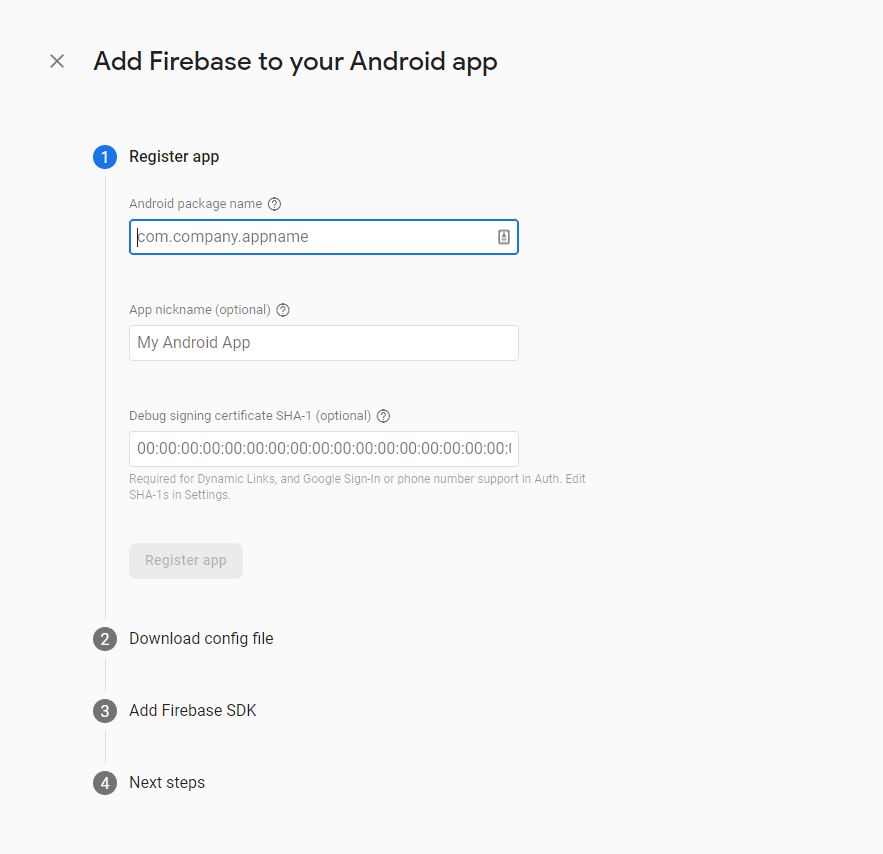
first we need the package name of our app, to get the package name of our app
Get Package name
- in your Project Flutter
Hello Teacher - Teacher App, which was already open using visual studio code, or Android Studio
make sure you've downloaded all the dependencies in this project, by running flutter pub get command
we will change the default package name of this app to your package name, this will be very easy and fast because this project already uses
change_app_package_nameflutter package https://pub.dev/packages/change_app_package_namerun the command below, but first change
com.mycompany.myappname, to your package name
flutter pub run change_app_package_name:main com.mycompany.myappname
- if successful it will look like this
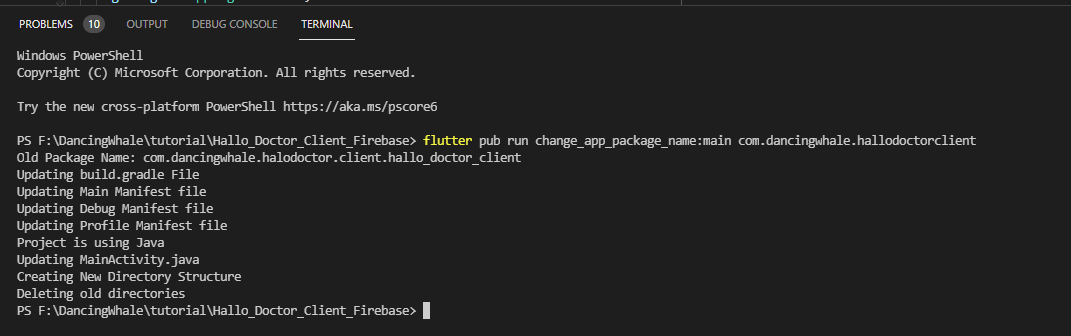
- so after that, the package name in your
Hello Teacher Teacher Appapp has all changed, and you can copy the package name to firebase - and add your App nickname
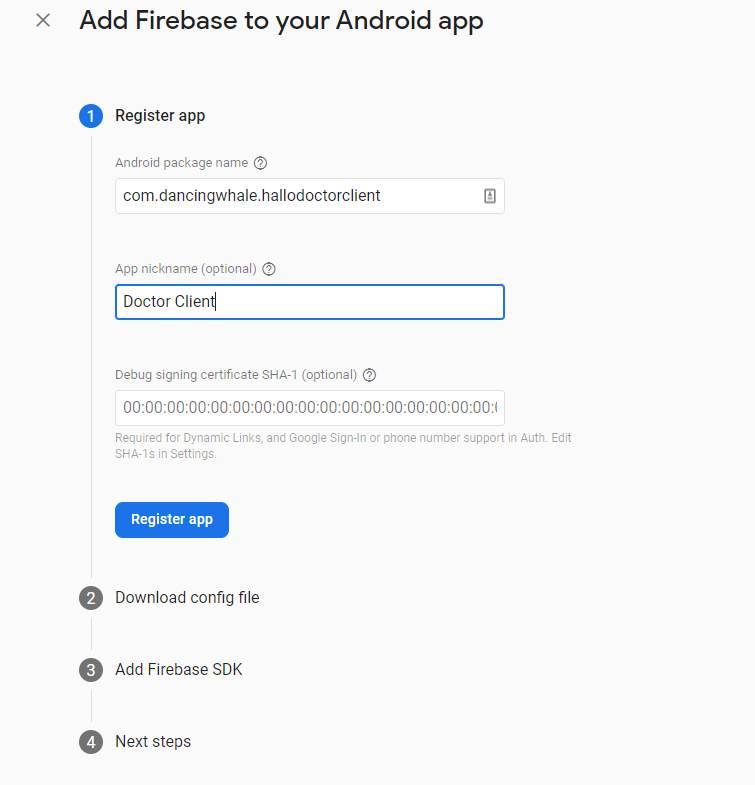
for debug signing, we can fill it later, just click register app
after that you have to download the
google-service.jsonfile
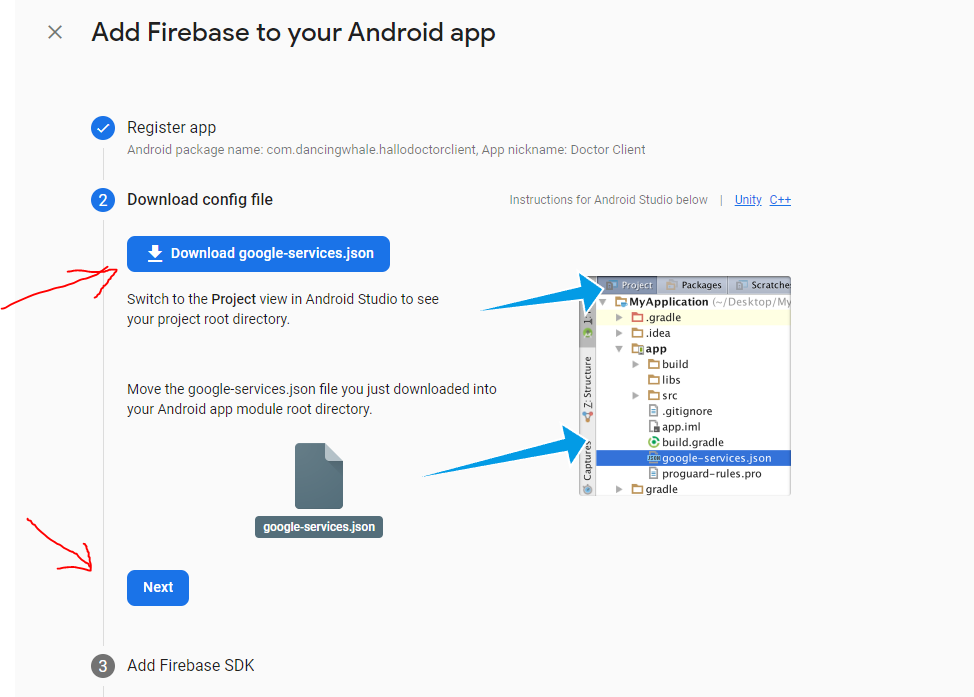
- and copy the file into your app project in the directory
android/app/
if in that folder there is already a google-service.json file change it to your file which you just downloaded,
and make sure there is no typo in the filename google-service.json
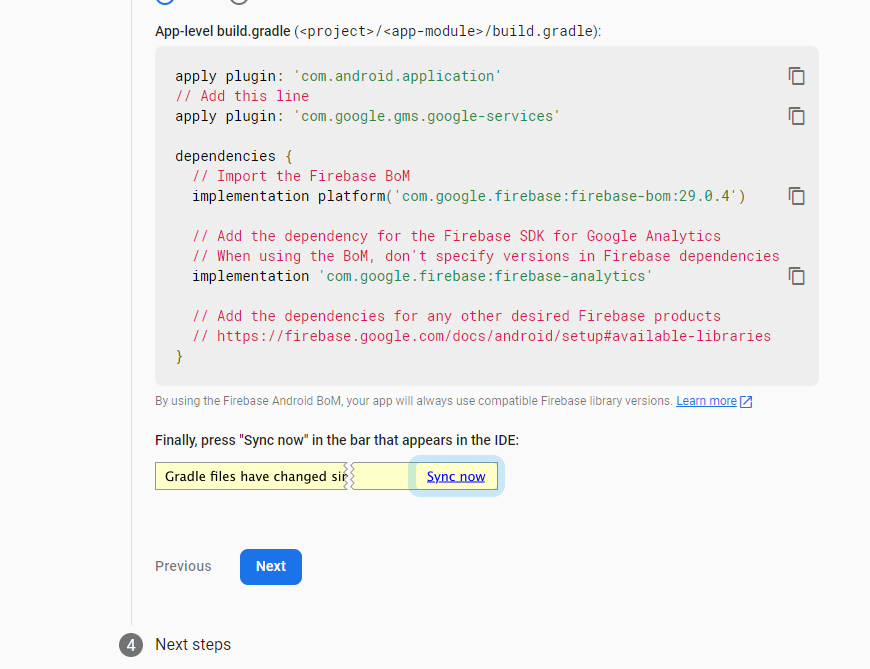
- after that click next in firebase,
- and click Continue to console
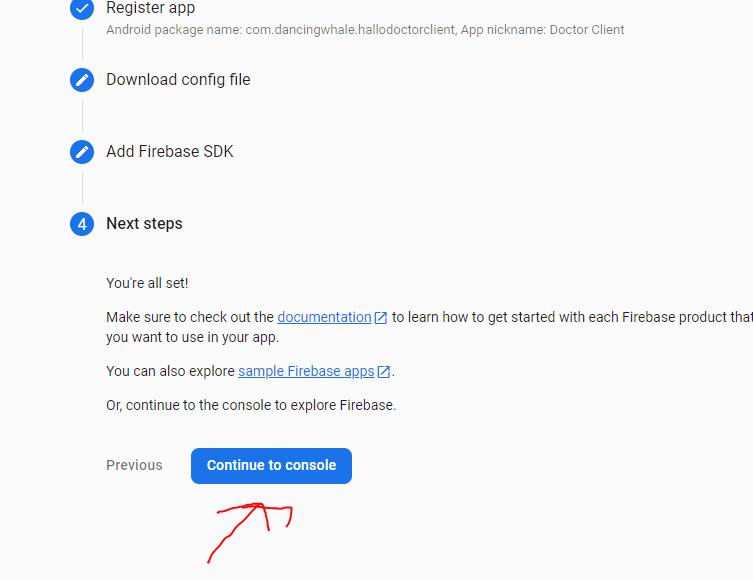
- congratulation your app is now registered
- but we need to enable some Firebase features for our app, like authentication, so we can login
Step No.5 Run App
to run this helo Teacher app, make sure your emulator is running, or your real device is connected
you can see it in the bottom corner of Visual Studio Code

- to run it press
F5
if the Helo Teacher app feels a little lag, or jittery, it's because the app is in debug mode if you release the app, everything will be smooth